Using DropSnaps: the organizer's guide
The short tour of the product, in the order you'll meet things, with a link to a longer answer for each.
Updated 5 min readBy the DropSnaps team
Quick answer
DropSnaps gives an event one QR code: guests scan it, share photos and videos from their phone's browser with no app, and everything shows on a live wall and a TV slideshow for you to download in full quality afterwards. Create an event, print the card, set a PIN and approvals if you like, put the slideshow on the venue's TV, and download everything afterwards.
DropSnaps collects your guests' photos, videos and messages through one QR code, shows them on a live wall and a TV slideshow, and gives you every original to download afterwards. This page is the short tour, in the order you'll meet things, with a link to a longer answer for each.
Setting up an event
Sign in with your email address (a six-digit code arrives by email; there's no password to remember), create an event, and give it a name, a date and the kind of event it is. You get three things straight away:
- A link to send to guests, add to invitations or put on a website.
- A six-letter code guests can type on the home page if they can't scan.
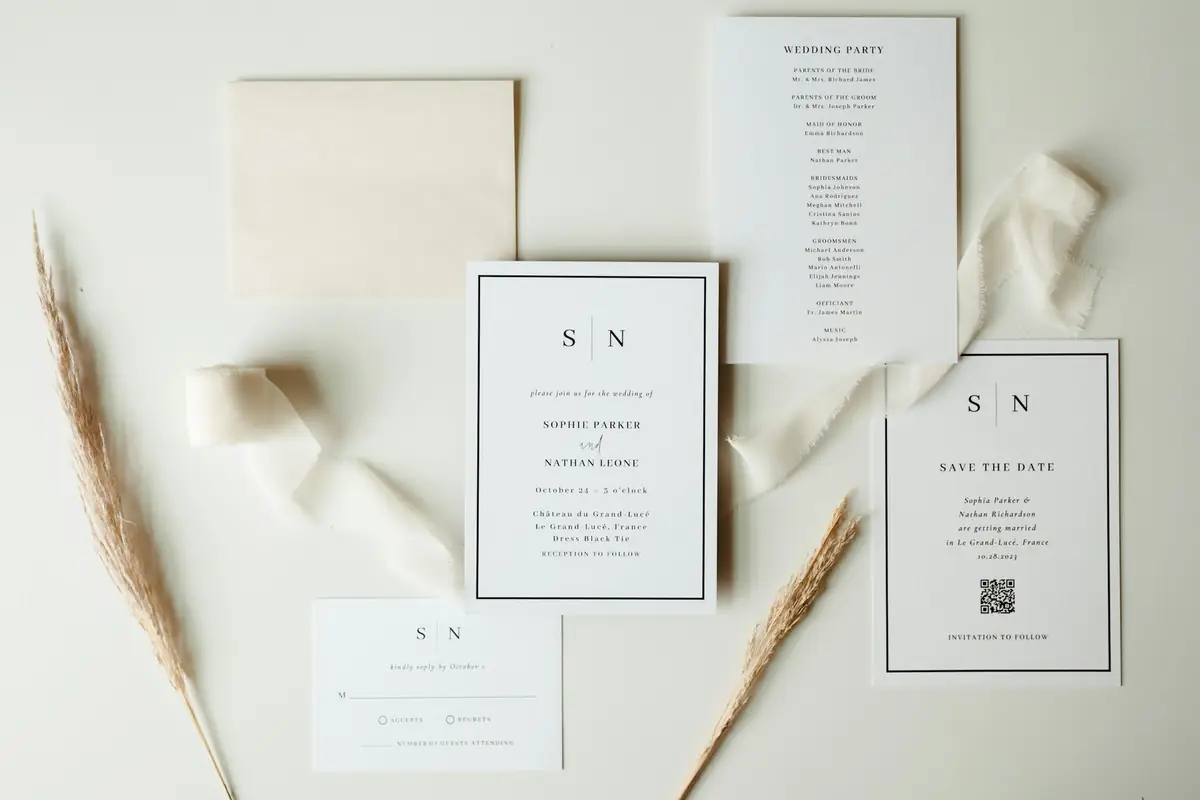
- A QR code card to print for the tables, the bar and the guest book. Open the event, choose Share and print it.
Guests open the link or scan the code and the event opens in their phone's browser. There's nothing for them to install and no account to create; they type their name once so you know who shared what.
Before the day
- Set a PIN if you'd like the event private: 4 to 6 digits that guests enter once. The printed QR code carries it, so scanning never asks.
- Approve photos before they show if there will be a screen at the venue and you'd rather see everything first.
- Print the QR code card and signs, or use the free templates.
- Choose the look of the wall and the slideshow (Polaroid is the default; there are six), and add any moment tags of your own.
On the day
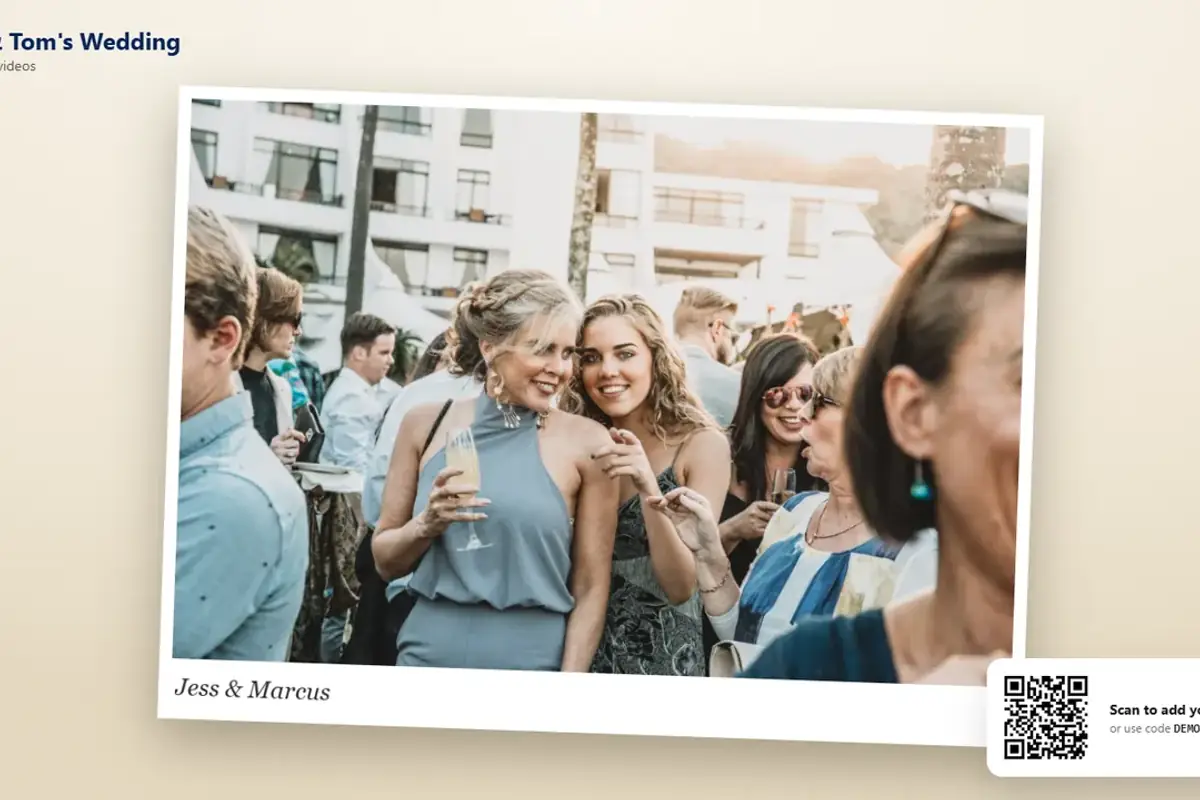
- Put the slideshow on the TV with a laptop and an HDMI lead, a streaming stick or the TV's own browser. New photos jump the queue, and the QR code in the corner brings more guests in.
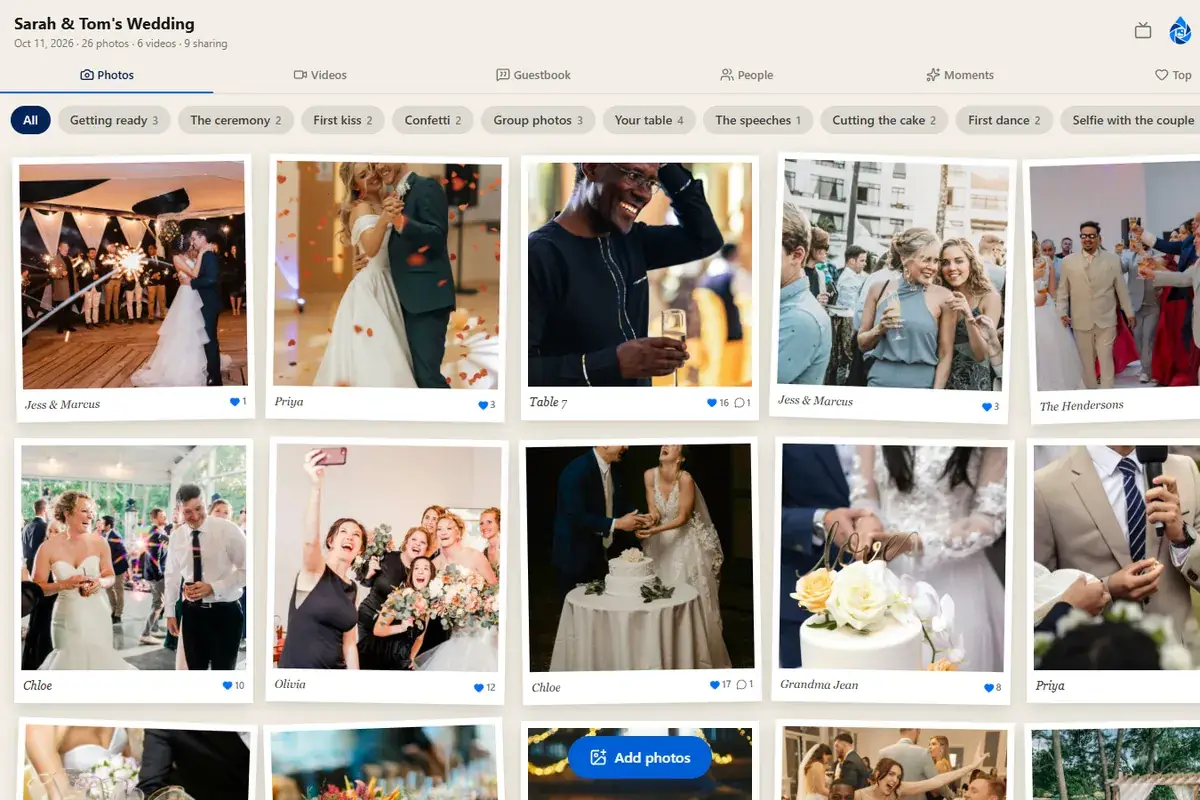
- The live wall is the page guests browse on their phones: every photo and video as it lands, with hearts and comments, filtered by moment.
- Moments and albums sort what arrives: guests pick a moment when they share, and the wall and the download are grouped by it.
- iPhone photos and videos are converted so they show and play on every device; the originals are kept.
Afterwards
- Download everything: every original in one zip, plus the guest book as text or a spreadsheet.
- The guest book: written notes, with photos attached, which Premium events can print as a keepsake.
- How long photos are kept: 30 days on Free, 12 months on the paid plans, with the option to add 6 more months.
- Reporting a photo: anyone at an event can report a photo, video or message, and you can remove anything yourself at any time.
If something isn't working
Most questions come down to one of these: a guest's phone can't scan (type the six-letter code on the home page instead), a photo hasn't appeared (approval is on, or the upload is still going: it shows on the guest's own page first), or the TV shows an old page (reload it). If it's something else, email hello@dropsnaps.com with the event's code and we'll look the same working day.
Questions people ask
Do guests need to download an app?
No. Guests scan the QR code or open the link and the event opens in their phone's browser. They type their name once; there's nothing to install and no account to create.
How do guests join if they can't scan the QR code?
They type the event's six-letter code on the dropsnaps.com home page, or open the link you've sent. The code is printed on the card under the QR code.
How do I get help?
Email hello@dropsnaps.com with your event's code and a line about what's happening, and someone who works on the product replies, usually the same working day.