Downloading everything: originals, favourites and the guest book
One zip of every original, favourites one at a time, the guest book as text or a spreadsheet, and tips for big events.
Updated 4 min readBy the DropSnaps team
Quick answer
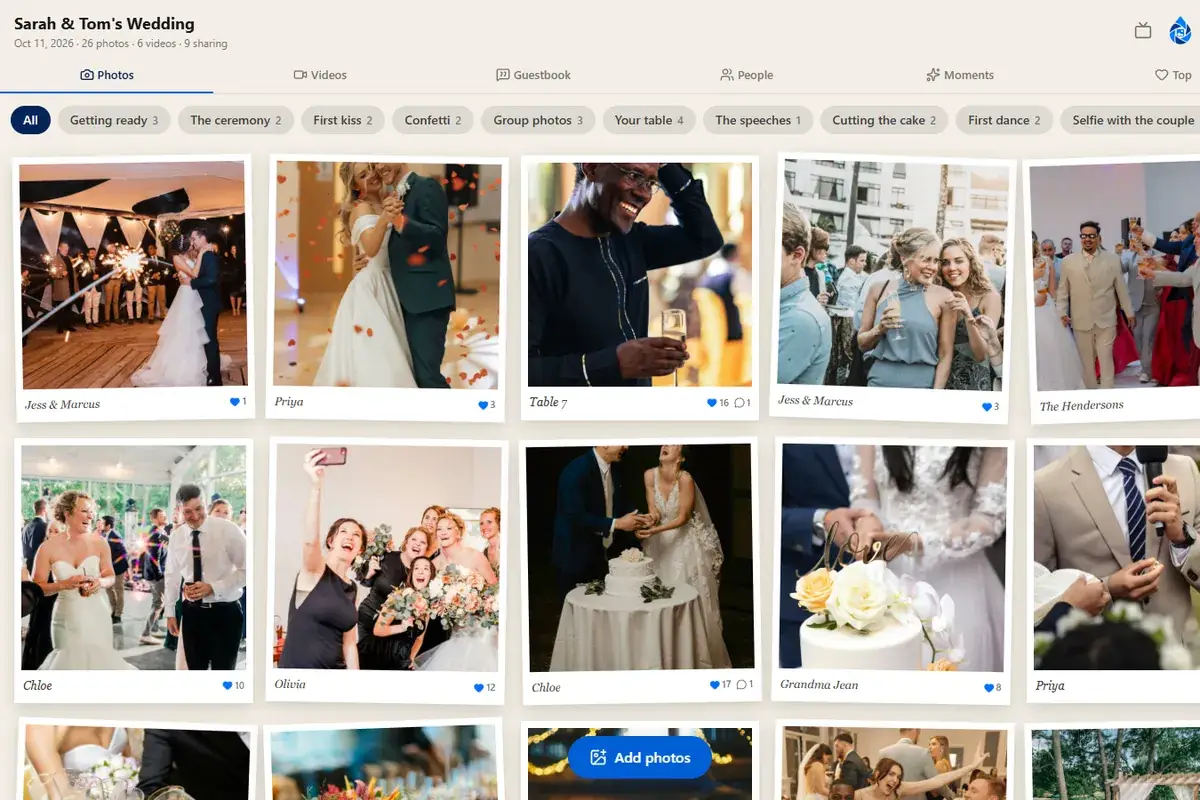
Open your event's Photos tab and choose "Download all" to get a zip of every original photo and video in the quality it was taken, named by who shared it and when. Download on a laptop, not a phone: a wedding's originals run to gigabytes. Favourites can be downloaded one at a time, and the guest book downloads separately as text or a spreadsheet.
Everything your guests share is yours to keep, in the quality it was taken: the originals, not copies made smaller for the web. Here's how to download it all, what you get, and how to handle a big event.
Download everything in one go
Open your event, go to the Photos tab and choose "Download all". The app builds a zip file of every original photo and video, named by who shared it and when, and your browser saves it. Do it on a laptop rather than a phone: a wedding's worth of originals runs to gigabytes, and a laptop's download will finish where a phone's might not.
The zip contains the files as they were uploaded (JPEG, HEIC, MP4, MOV and so on), so iPhone photos come as HEIC. They open on a Mac or an iPhone as they are; on Windows, install the HEIC support from the Microsoft Store, or convert them with a free tool once downloaded. Videos come as recorded, so an iPhone HEVC video plays on an iPhone, iPad or Mac as it is; for everything else the converted stream on the event's page plays it, and most video players on Windows handle HEVC with the free extension installed.
Picking out favourites
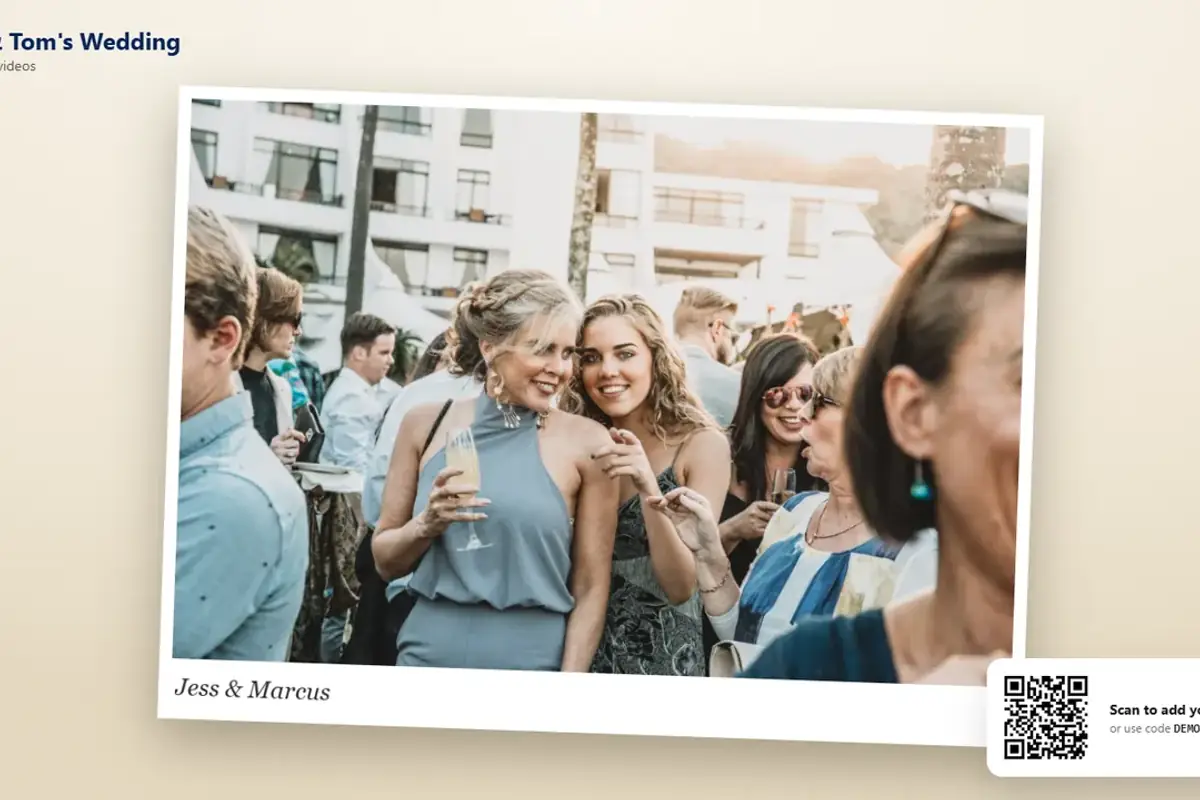
You don't have to take everything. In the Photos tab, open any photo or video and download it on its own, in full quality. Guests can do the same from the wall if you've turned on guest downloads (paid plans).
The guest book
The written notes download separately, from the Guest book page: as plain text, or as a spreadsheet with the name, the note, the date and the photos each note came with. Premium events can also print the guest book as a keepsake in a choice of designs; the guest book article covers it.
Big events
A download of several gigabytes takes a while on a home connection and can fail on a flaky one. If it does, start it again; nothing is lost. For a very large event, download in two or three sittings by date or by moment rather than all at once, and keep the zip somewhere you back up: the photos stay on DropSnaps for the keeping period of your plan, not for ever.
Keeping the originals safe
Once you have the zip, copy it to a second place: an external drive, or a cloud drive you already pay for. Two copies in two places is the rule for photos you'd mind losing. The how long photos are kept article explains when the event closes and how to add time if you need it.
Questions people ask
Are the downloads full quality?
Yes. The zip holds the original files as guests uploaded them (JPEG, HEIC, MP4, MOV and so on), not the web-sized copies the wall shows.
Why are some photos HEIC files?
iPhones save photos as HEIC. They open on a Mac or an iPhone as they are; on Windows, install the HEIC support from the Microsoft Store or convert them with a free tool after downloading.
Can guests download photos too?
On the paid plans you can turn on guest downloads, and guests download originals from the wall. With it off, only you can download.