PINs and privacy: who can see your event
Setting a PIN, what it protects, the findable-by-name switch and the other settings that decide who sees and shares what.
Updated 4 min readBy the DropSnaps team
Quick answer
Every event is private to people with its link or six-letter code. A PIN of 4 to 6 digits adds a second lock: guests who scan the printed QR code are let straight in, because the code on the card carries the PIN, while guests who open the plain link or type the code enter it once. Change the PIN and everyone re-enters it.

Every DropSnaps event is private by default: only people with the link or the six-letter code can open it, and it's never listed anywhere unless you turn on "Findable by name". A PIN adds a second lock for the people who do have the link. Here's how the PIN works, what guests see, and the other settings that decide who can see and share what.
Setting a PIN
In your event, open Settings and add a PIN of 4 to 6 digits. From then on:
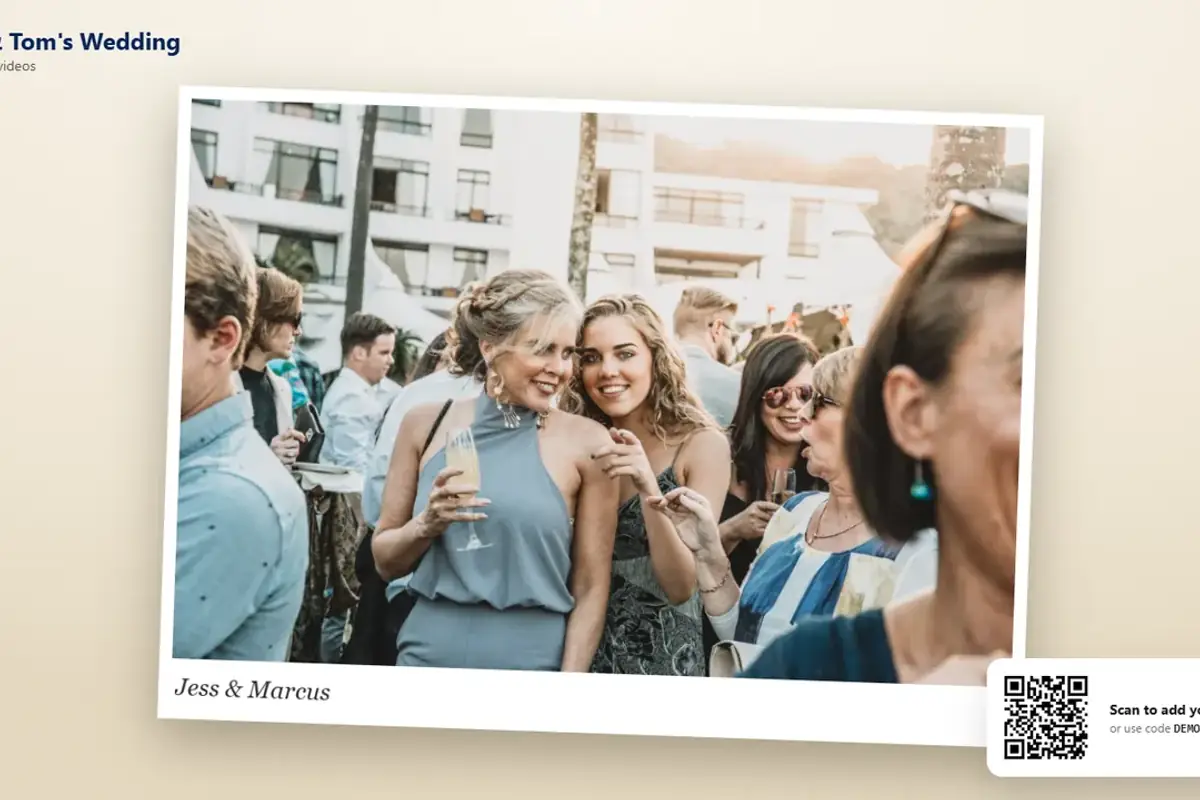
- Guests who scan the printed QR code are let straight in. The code on the card includes the PIN, so scanning never asks for it. That's the point of the card: nobody at the tables types anything.
- Guests who open the plain link or type the six-letter code are asked for the PIN once. After that, their phone remembers it for that event.
- You never need the PIN while you're signed in as the organizer.
Change the PIN and everyone has to enter the new one once; that's the way to lock out a link that has travelled further than you meant.
What the PIN protects
The guest page, the live wall, the slideshow and the photos themselves: nobody without the PIN can see guests' photos, videos or messages. The event's name and date can be seen by someone with the link, so they know what they're being asked for a PIN to.
Findable by name
Off by default. Switch it on if you'd like guests who only remember the couple's names to find the event from the home page's search. With it off, the event never appears in a search: the link, the code and the QR card are the only ways in. Most private events leave it off; a community event or a festival might turn it on.
Who can share, and when
- Uploads open: switch uploads off when you want to stop new photos arriving, for example once you've made the album. Guests can still look.
- Approve before showing: new photos stay out of sight until you approve them. The approving photos article explains it.
- Reactions and comments can each be switched off if you'd rather the wall stayed quiet.
- Guest downloads: on the paid plans you can let guests download originals from the wall; off, only you can.
Where the photos are
Photos and videos are stored on Cloudflare's network, encrypted, and served only from your event's own address, which carries an unguessable key. Before a photo or video leaves a guest's phone, the app removes the location the camera saved in it, so a photo taken at home doesn't carry the address. The privacy policy sets out what is collected and for how long, and the about page says who runs the service.
If a link has gone astray
Change the PIN (everyone re-enters it once), switch "Findable by name" off if it was on, and, if you'd rather start again, delete the event and create a new one with a new link and code.
Questions people ask
Do guests have to type the PIN?
Not if they scan the printed QR code: it includes the PIN, so scanning opens the event straight away. Guests who open the plain link or type the six-letter code are asked for it once, and their phone remembers it.
Can anyone find my event?
Not unless you turn on "Findable by name", which is off by default. With it off, the event never appears in the home page's search; the link, the code and the QR card are the only ways in.
What if the link has been shared too widely?
Change the PIN in the event's settings: everyone has to enter the new one once, and the old printed cards stop working. Switch off "Findable by name" if it was on, or delete the event and create a new one with a new link and code.