Approving photos before they show
Hold every new photo until you've seen it, approve in batches, and know what guests see meanwhile.
Updated 3 min readBy the DropSnaps team
Quick answer
"Approve before showing" holds every new photo, video and message out of sight until you approve it in your event's Photos tab, where new arrivals are marked and counted. Guests still see their own uploads on their own page; the wall and the slideshow show only what you've approved. Turn it on in settings, at any time, and give one person the job on a busy evening.
"Approve before showing" holds every new photo, video and message out of sight until you've looked at it. It's the setting to use when there's a screen at the venue, when the event is open to a lot of people, or when you'd simply like to see things first. Here's how it works and what it changes.
Switching it on
In your event, open Settings and turn on "Approve before showing". It's off by default, so photos appear on the wall and the slideshow as soon as they land; switch it on and they wait for you instead. You can turn it on or off at any time, including during the event.
What guests see
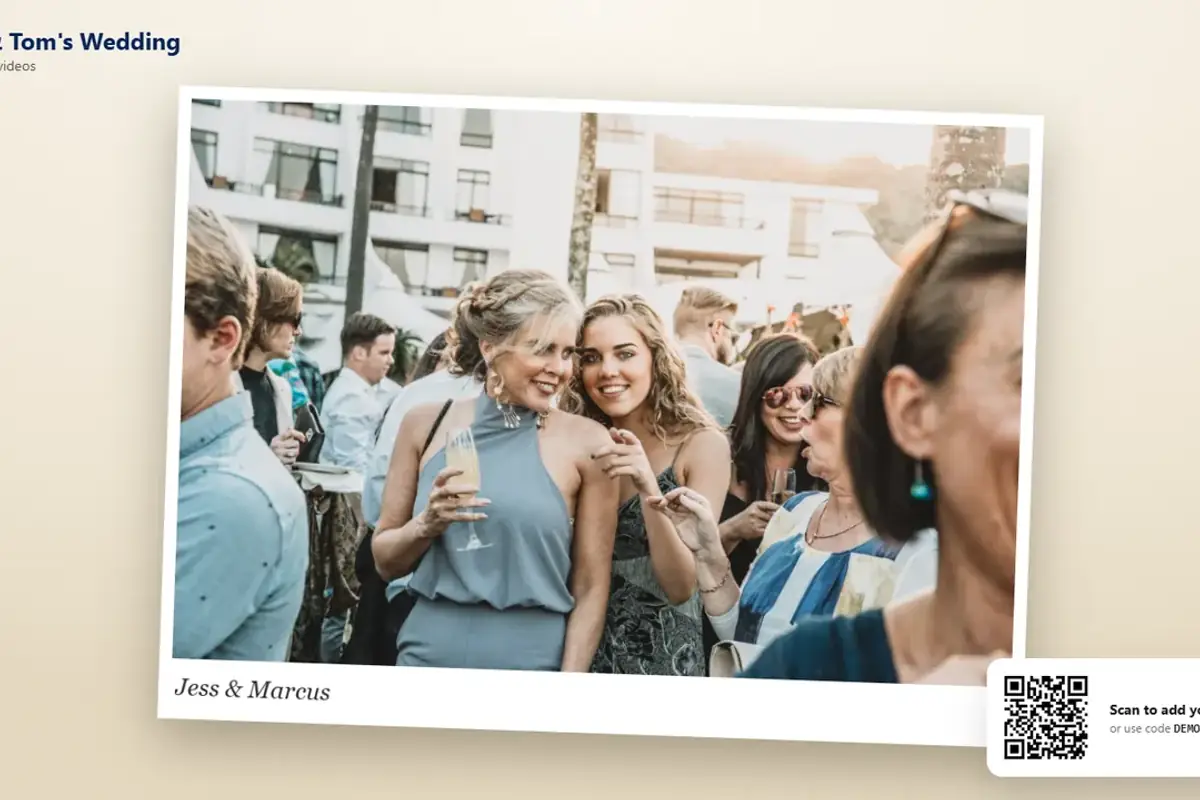
Guests still share in the normal way, and their own photos appear on their own page straight away under "Your uploads", so they know the upload worked. What they don't see is each other's unapproved photos: the wall and the slideshow show only what you've approved.
Approving
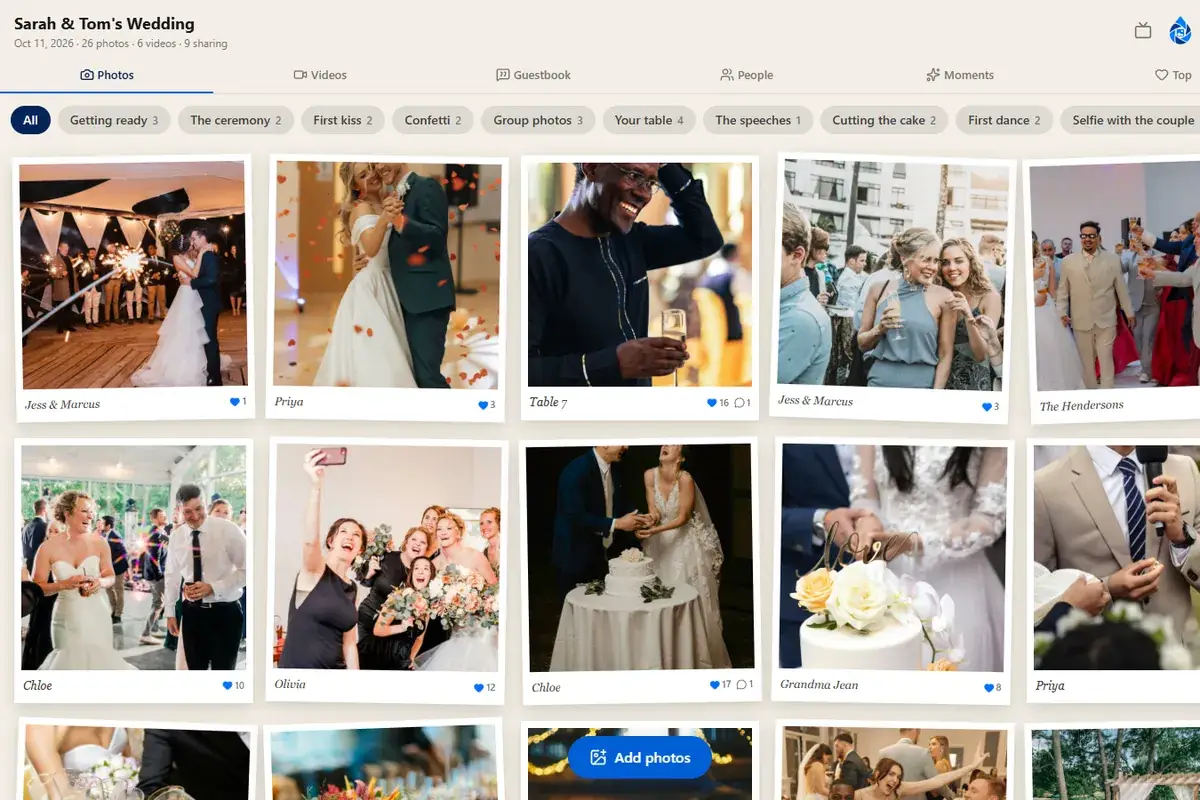
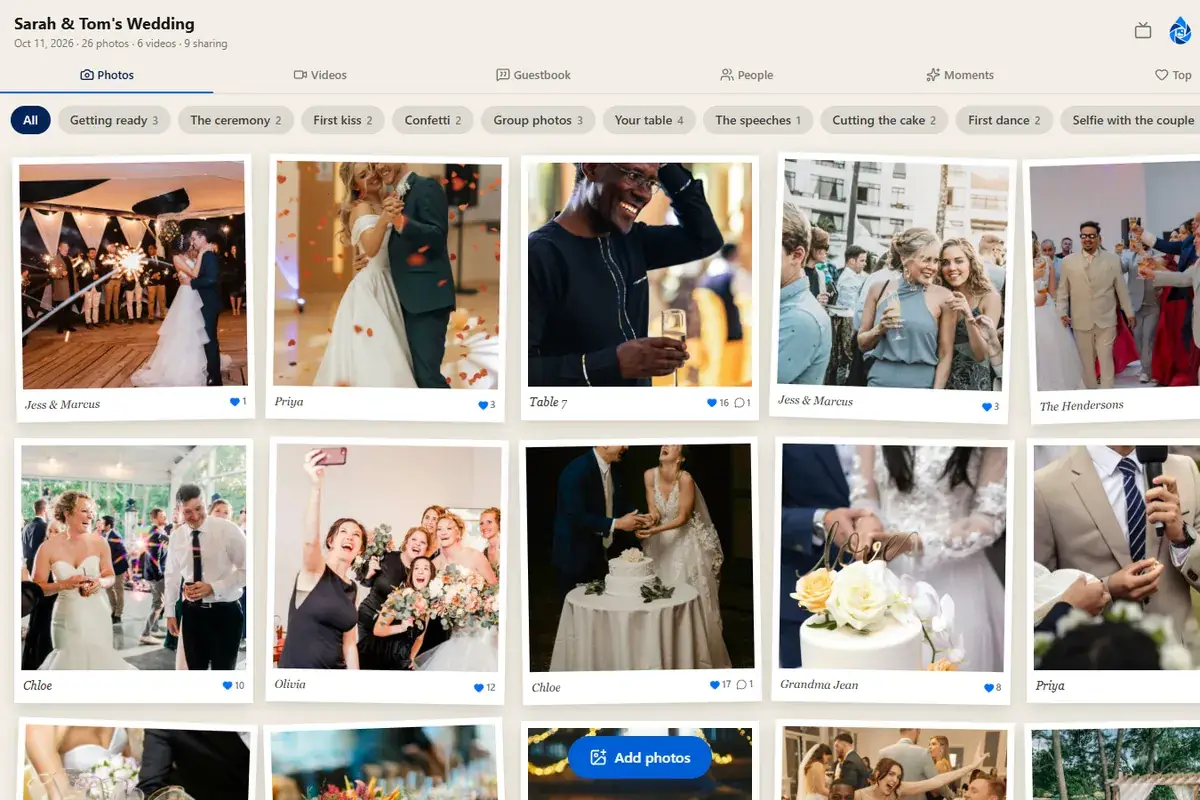
Open your event and the Photos tab. New arrivals are marked as awaiting approval, with a count on the event's page so you can see at a glance how many are waiting. Approve them one at a time or select several and approve them together; anything you'd rather not show, delete or leave unapproved. Approved photos reach the wall and the slideshow straight away.
On a busy evening it helps to give one person the job: a bridesmaid or a friend signed in on their phone, approving in batches between courses. Anyone you give your sign-in to can approve, so share it with care, or do it yourself at the table.
Without approval on
You can still remove anything at any time from the Photos tab, and anyone at the event can report a photo, video or message, which hides it for you to look at. For most private weddings and parties, that's enough; approval is for the events where the screen is the point or the guest list is open.
Tips
- Turn it on before you print the QR cards if you'll want it on the day: guests who upload before you switch it on are already showing.
- Approve the first few photos quickly so the wall isn't empty when guests look.
- If you turn approval off later, everything waiting is shown.
Questions people ask
Where do I approve photos?
In your event's Photos tab: new arrivals are marked as awaiting approval, with a count on the event's page. Approve them one at a time or select several, and approved photos reach the wall and the slideshow straight away.
What do guests see while a photo is waiting?
Their own photo on their own page under "Your uploads", so they know it worked. Other guests don't see it on the wall or the slideshow until you approve it.
What happens if I turn approval off later?
Everything still waiting is shown. Turning it on again holds new arrivals from that point; photos already showing stay showing unless you remove them.