How to put the slideshow on the venue's TV
HDMI, a streaming stick or the TV's browser: every way to get the slideshow on the big screen, and what to test beforehand.
Updated 5 min readBy the DropSnaps team
Quick answer
The slideshow is a web page, so anything with a browser and a screen can show it: a laptop on an HDMI lead is the most reliable, a Fire TV Stick's browser, Chromecast or Apple TV mirroring work on the venue's Wi-Fi, and most Samsung, LG and Sony TVs open it in their own browser. Make it full screen, stop the device sleeping, and test it at the venue.

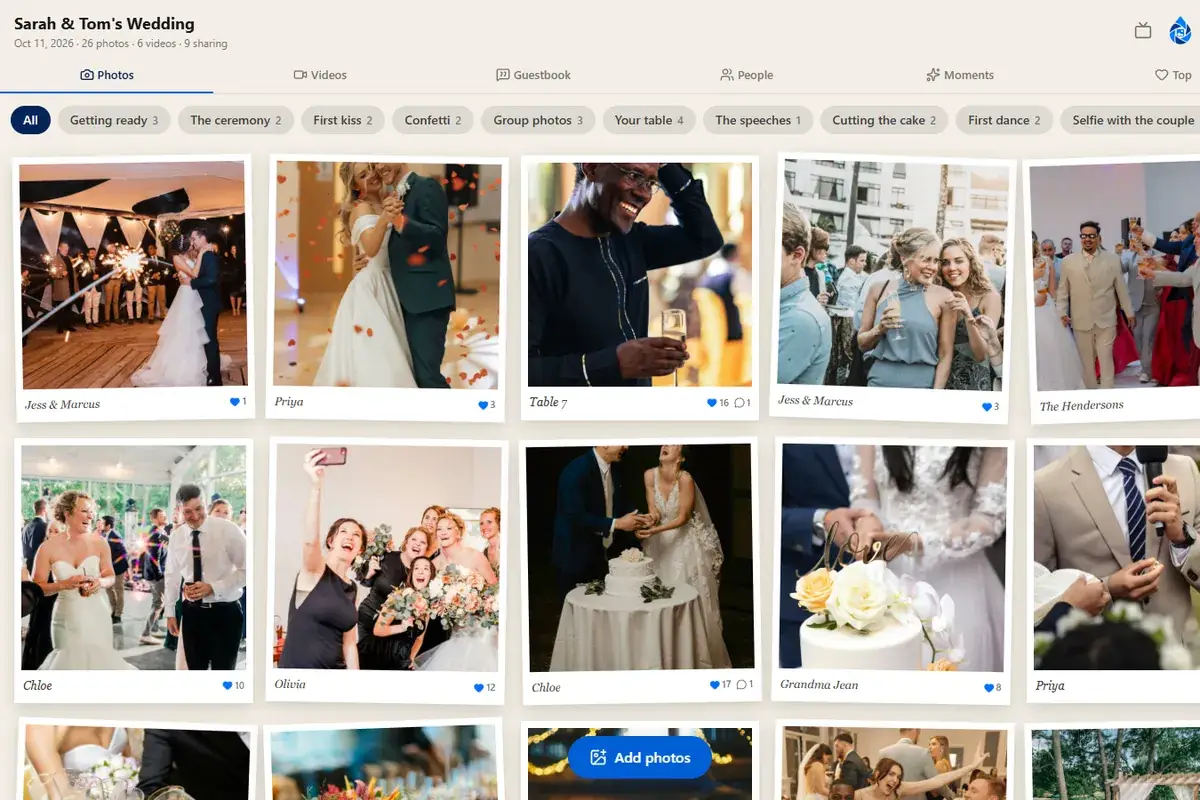
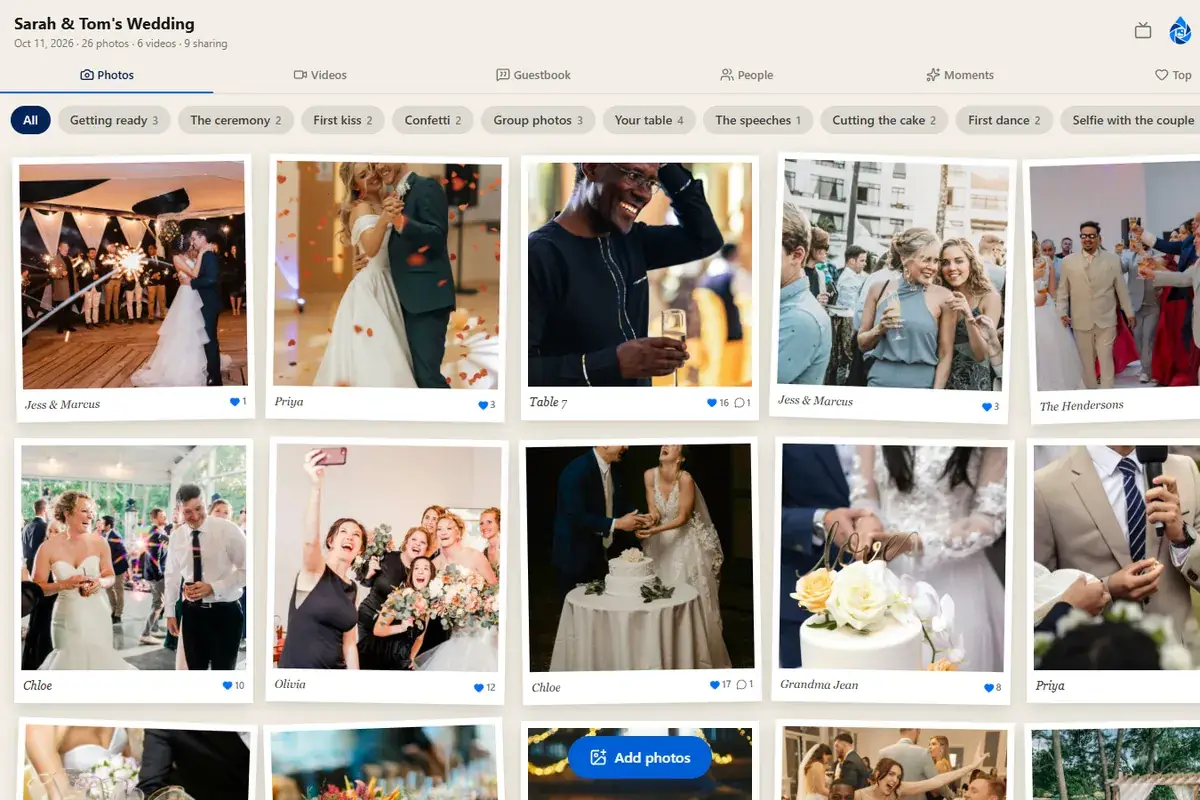
The TV slideshow is a web page: open your event's slideshow address in any browser, make it full screen, and it runs on its own, showing guests' photos and videos as they arrive with your QR code in the corner. That means it works on anything with a browser and a screen. Here are the ways to get it onto the venue's TV, from the most reliable to the most convenient.
Where the slideshow is
In your event, choose Share and then "Open the TV slideshow", or go to your event's address with /slideshow on the end (for example dropsnaps.com/e/sarah-and-tom/slideshow). It plays photos and videos in turn, puts new arrivals at the front of the queue, and shows the QR code and the six-letter code so guests at the venue can join in. Tap or move the mouse to show the controls and use the full-screen button (the arrows), or your browser's own full-screen key; the look (Polaroid, classic, collage and the others) follows the one you chose for the event.
A laptop and an HDMI lead
The most reliable way, and the one venues are used to. Plug the laptop into the TV or the venue's screen with an HDMI lead, open the slideshow in the laptop's browser, press F11 (Windows) or Control-Command-F (Mac) for full screen, and turn off the laptop's sleep and screen saver for the evening. Plug the laptop into the mains.
If the screen shows the laptop's desktop but not the slideshow, the display is set to extend rather than duplicate: press Windows-P and choose Duplicate, or on a Mac use System Settings, Displays, and mirror.
A streaming stick or box
- Amazon Fire TV Stick: install the Silk browser from the Fire TV app store, open the slideshow's address, and use the remote's menu button to go full screen. It's a small screen keyboard, so the six-letter code is quicker to type than the whole address: go to dropsnaps.com, type the code, then open the slideshow from the event page.
- Chromecast or Google TV: cast the laptop's browser tab from Chrome (the three-dot menu, then Cast, and choose the tab) or open the slideshow in Google TV's browser.
- Apple TV: AirPlay the laptop's or iPad's screen (Control Centre, Screen Mirroring), then open the slideshow in Safari in full screen.
Casting and mirroring depend on the venue's Wi-Fi: both devices need to be on the same network. If the venue's Wi-Fi is locked down, the HDMI lead wins.
The TV's own browser
Most Samsung, LG and Sony TVs have a web browser in their app list. Open it, type the slideshow's address (or dropsnaps.com and the six-letter code), and look for a full-screen option in the browser's menu. TV browsers vary: some are slow with video, and some bring back the menu bar after a while. Try it the week before, and keep the laptop as a fallback.
Tips for the day
- Test the whole set-up at the venue, with the venue's Wi-Fi, before guests arrive.
- Put the laptop or stick on the mains, not battery.
- Set the TV and the laptop not to sleep. A laptop lid closed is a laptop asleep.
- Leave the slideshow running from the start of the reception: an empty screen with a QR code on it is what gets the first photos in.
- If photos stop arriving, reload the page. The slideshow checks for new photos by itself, but a Wi-Fi dropout can stall it.
- Turn on "Approve before showing" if you want to see photos before the room does; approved photos reach the slideshow as you approve them.
- Sound: videos play without sound on the slideshow, which is what a venue wants.
What the slideshow shows
Everything approved, photos and videos, newest first when something new lands and in a steady loop otherwise. Videos play for a short stretch each so the loop keeps moving. If you've chosen a moment on the wall, the slideshow shows everything regardless: it's meant for the whole room.
Questions people ask
How do I show the slideshow on a TV at the venue?
Open your event's slideshow address in a browser on a laptop connected to the TV by HDMI, make it full screen and turn off sleep. A Fire TV Stick (Silk browser), Chromecast or Apple TV (mirroring a laptop or iPad) and the TV's own browser work too, as long as they're on the venue's Wi-Fi.
Does the slideshow need Wi-Fi?
Yes: it checks for new photos as they arrive. A phone's hotspot works if the venue has none. If the connection drops, the slideshow keeps showing what it has; reload the page once the connection is back.
Can I check photos before they appear on the screen?
Yes. Turn on "Approve before showing" in the event's settings and new photos wait in your Photos tab until you approve them; approved photos reach the slideshow straight away.
Do videos play with sound on the slideshow?
No. Videos play without sound on the slideshow, for a short stretch each so the loop keeps moving, which is what a venue wants.