Keeping wedding photos private: PINs, approvals and who sees what
Who can see your guests' photos, how PINs and approvals work, photos of children and what happens if something unsuitable is shared.
Updated · 7 min read·By the DropSnaps team
Questions people ask
Who can see the photos on a wedding photo-sharing page?
With DropSnaps, anyone who has the event's link, QR code or six-letter code. Add a PIN and only people who also know the PIN can open it; the QR code you print includes the PIN, so guests who scan don't have to type it.
Can guests delete photos they've shared?
Yes. Guests can delete anything they shared from "Your uploads" on the device they used, and the organizer can hide or delete anything on the event.
Collecting your guests' photos in one place is wonderful. It also means a lot of personal photos, of a lot of people, in one place. Here's how to decide who sees what, how the privacy settings work, and what to do if something goes wrong. The details below are for DropSnaps, but the questions are worth asking of any service you use.
Who can see the photos?
With DropSnaps, anyone who has your event's link, QR code or six-letter code can open it and see the wall. That's what makes it easy for guests, and it's why the link is best shared with guests rather than posted publicly.
Unless you turn it off, people can also find your event by searching its name on the DropSnaps home page. If you'd rather it was only reachable through your link and QR code, turn off Findable by name in your event's settings.
Add a PIN
A PIN is a 4 to 6 digit number guests enter before they can see or share anything. It keeps the photos to the people who were actually there, even if the link gets passed around.
The QR code you print from your event includes the PIN, so guests who scan go straight in without typing anything. Anyone who types the six-letter code instead is asked for it. Our QR code guide has more on printing.
Approve photos before they appear
Turn on approval and new photos wait for you before they show on the wall or the slideshow. You approve or hide them from your phone. It's most useful when the slideshow is on a big screen in front of everyone, or at large weddings where you won't know every guest.
Removing photos
You can hide or delete any photo, video or message on your event at any time. Anything you hide also disappears from a wall or slideshow that is already open, within a few seconds.
Guests can delete anything they shared, from "Your uploads" on the device they used.
Anyone in a photo who wants it removed can ask you, or contact us.
Anyone can report a photo, video or message to us
If something unsuitable is shared
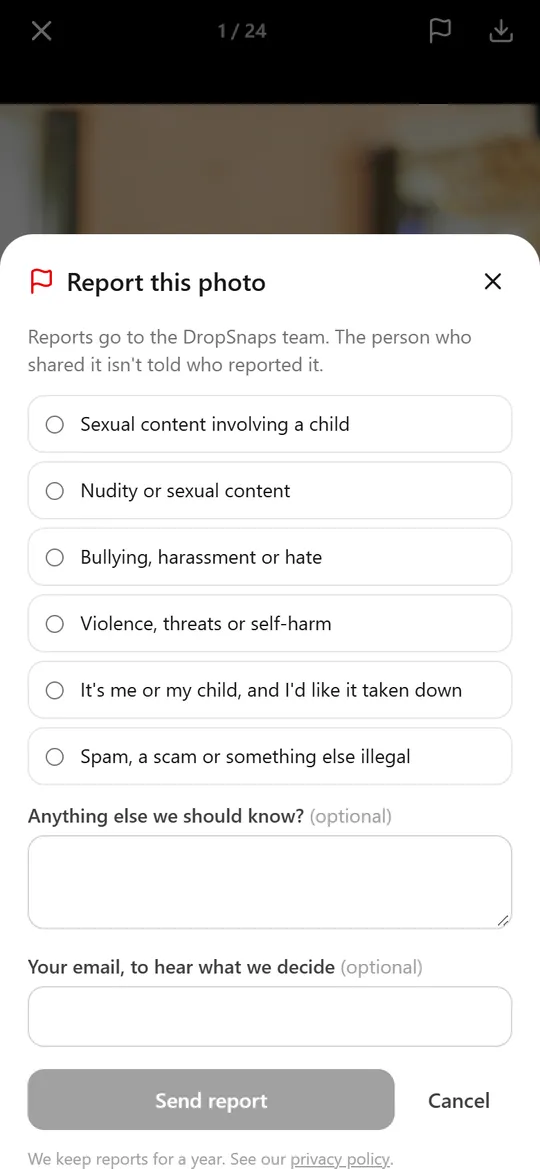
Every photo, video and message has a Report button. Reports come to us, not to the person who shared it. Anything reported as sexual content is hidden straight away while we check it, and everything else is reviewed. You can also hide or delete it yourself at any time.
Photos of children
Weddings are full of children, and parents feel differently about photos of them being shared. A few kind habits:
Ask guests to think before sharing close-ups of other people's children.
If a parent asks you to remove a photo, remove it. It takes a couple of taps.
If your wall is on a public screen, consider turning on approval.
Details hidden in photo files
Phones save details inside each photo: the date and time, the camera model, and sometimes the location. DropSnaps keeps your guests' originals exactly as they were uploaded, so anyone who downloads an original can read those details. The web-sized copies shown on the wall and slideshow don't include them. If you let guests download originals, bear that in mind.
How long photos are kept
Every plan keeps your photos for a set time after the event, and we email you two weeks before anything is removed. After that, everything shared to the event is permanently deleted. Download what you want to keep before then. Photos and videos are stored in Western Europe.
Social media etiquette
Some couples want to share the first photos themselves. If that's you, say so: a line on the QR card or in the announcement ("please don't post until we have!") is enough. A private photo-sharing page gives guests somewhere to share straight away without posting publicly.
In short
Share the link with guests, not publicly.
Add a PIN if you want to be sure only guests get in.
Turn on approval if the slideshow is on a big screen.
Download the originals you want to keep before the event's time runs out.