QR codes on wedding invitations: what to link, size and wording
What to link it to, codes that won't stop working, how big to print it, wording and testing before the printer runs.
Updated · 6 min read·By the DropSnaps team
Quick answer
Yes, you can put a QR code on wedding invitations: it takes guests straight to your RSVP form, wedding website or photo-sharing page. Use a static code that won't stop working, print it at least 2.5 cm across, dark on a light background, with a short line saying what it does, and test it on several phones before the printer runs.
Questions people ask
Can I add a QR code to my wedding invitation?
Yes. Any web address can be turned into a QR code: your wedding website, an RSVP form or the page where guests share their photos. Print it at least 2.5 cm across with a label underneath, and test it before you print the full run.
Do people put QR codes on wedding invitations?
More and more couples do, usually linking to their wedding website for travel, timings and RSVPs. It saves guests typing a long address and lets you update details without reprinting.
How do I make a QR code for my wedding RSVP?
Set up the RSVP page first, on your wedding website or a free form such as Google Forms, then make a static QR code for its address. Print it with a line such as "Scan to RSVP by 1 May" and check it lands on the form.
Do wedding QR codes expire?
Static QR codes don't: they hold the web address itself. Many free generators make dynamic codes that stop working when a trial ends, so check before you print. A photo-sharing QR code keeps working for as long as the event it points to is kept.
How much does a QR code for a wedding cost?
The code itself is free. You only pay for what it points to, if anything: a wedding website, an RSVP service or a photo-sharing plan. DropSnaps is free for up to 50 photos.
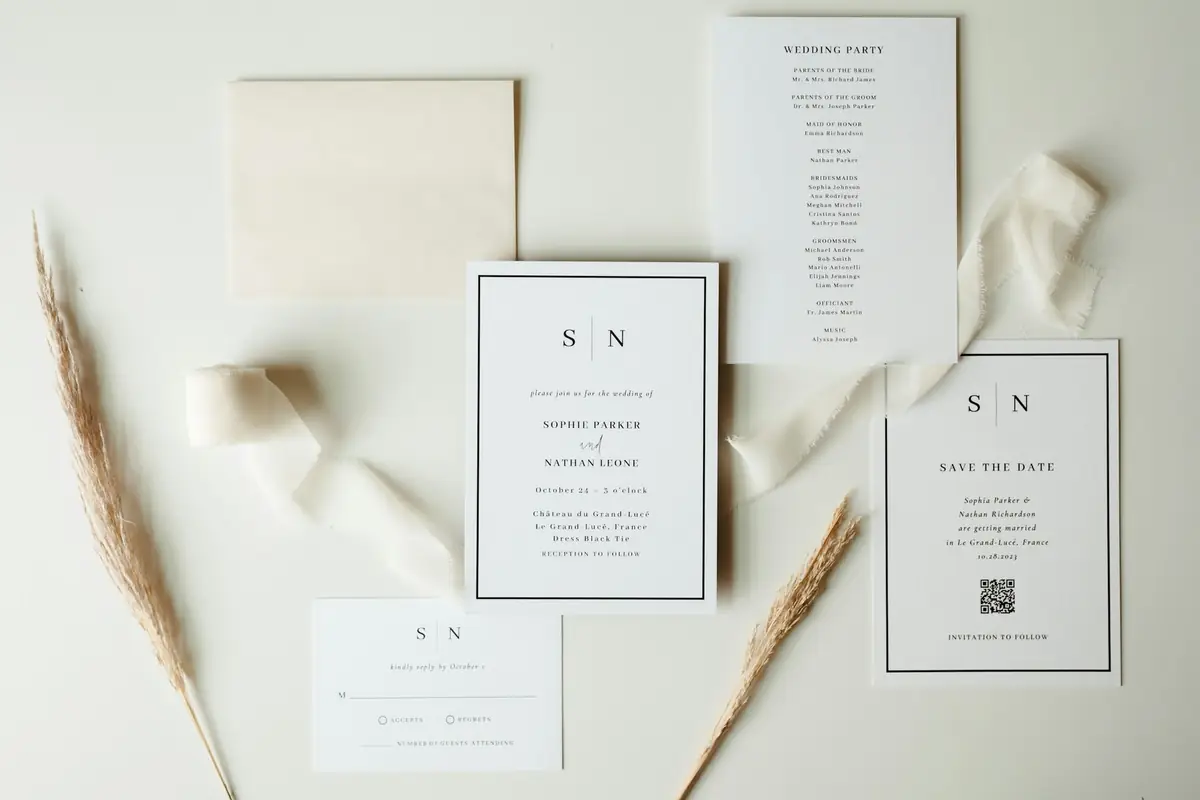
Yes, you can put a QR code on your wedding invitations, and more couples do every year. One small square takes guests straight to your RSVP form, your wedding website or the page where they'll share their photos, without typing a long web address. This guide covers what to link it to, how to make a code that won't stop working, how big to print it, wording that tells guests what it does, and how to test it before the printer runs.
What can a QR code on an invitation link to?
A QR code is just a web address in a form a phone camera can read. Point it at anything with a link:
Link it to
Why it helps
Good for
Your wedding website
Travel, hotels, timings, dress code and FAQs in one place
Invitations and save the dates
An RSVP form
Replies arrive in one list, with dietary needs and song requests
Invitations
Your photo-sharing page
Guests know where to share before, during and after the day
Invitations, the order of the day, table cards
Directions and parking
One tap opens the map
Invitations for hard-to-find venues
Your gift list
Saves an awkward conversation
The website, rather than the invitation itself
A song request form
Guests help build the playlist
Invitations or the RSVP form
One QR code or several?
One code is simplest. Link it to your wedding website and put everything there: the RSVP form, travel, the gift list and the photo-sharing link. Guests only need to scan once, and you can update the website without reprinting anything.
Two or three codes work if each has one clear job and a label underneath: "RSVP here", "Our wedding website", "Share your photos". More than three starts to look like a puzzle.
Make a QR code that won't stop working
This is the trap most couples don't know about. Many free QR code generators make dynamic codes: the code points at the generator's own server, which forwards guests to your page. When the free trial ends, the redirect stops, and every printed invitation leads to a sign-up page or an error.
A static code holds your web address itself, with nothing in between, so it works for as long as the page it points to exists. Use a static code, or the code your service gives you:
Wedding website builders usually give you a link and often a QR code for your site.
For RSVPs, use your website's RSVP page, or a free form such as Google Forms or Microsoft Forms.
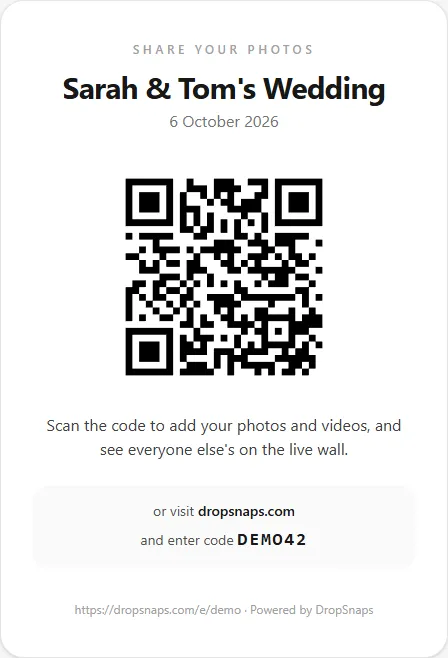
For photos, DropSnaps gives every event its own QR code, ready to download as an SVG for your stationer or to print on a table card. It points straight at your event's page and keeps working for as long as your event is kept.
Should you put the photo-sharing QR code on the invitation?
It's worth it. Guests can share photos from the hen and stag dos and the weeks before, and on the day they already know what the code on the tables is for. Guests who can't come can still see the photos and leave a message. Repeat the code on the day, though: most invitations stay on the fridge at home.
With DropSnaps you can create the event as soon as you have a date, so the code on the invitation is the same one on your table cards and signs. If you add a PIN, the QR code you download includes it, so guests who scan go straight in.
Every DropSnaps event comes with a QR code and a printable table card
How big should the QR code be on an invitation?
Invitations and save the dates: around 2.5 cm across is the smallest to go. Bigger is easier for older phones.
Table cards: 4 to 5 cm across.
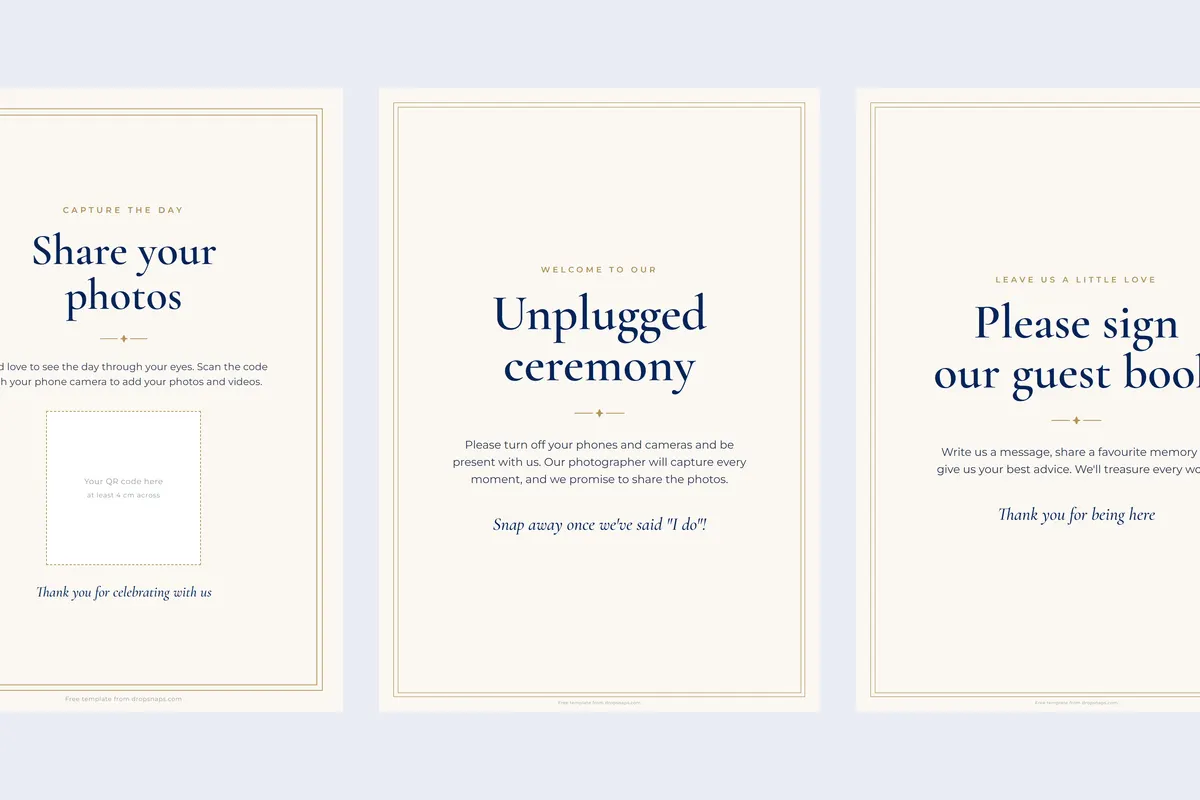
Welcome and entrance signs: about a tenth of the scanning distance, so roughly 20 cm across for a sign read from 2 metres.
Design tips that keep it scannable
Dark on light. Black, navy or a dark colour on a pale background. A light code on dark card doesn't scan on every phone.
Leave a clear border around the code, at least the width of four of its small squares.
Be careful with foil. Gold or silver foil reflects light and can be hard to scan. Print the code in ink even if the rest of the invitation is foiled.
Avoid textured or glossy card right behind the code.
Don't put a logo or monogram in the middle unless your designer has tested it.
Put it somewhere sensible: the back of the invitation, the details card, or next to the RSVP date.
What to write next to it
Tell guests what happens when they scan, and by when:
"Scan to RSVP by 1 May"
"Everything you need to know: travel, hotels and timings"
"Our wedding website: scan with your phone camera"
"Share your photos with us, before, during and after the day"
"Help us catch every moment: scan to share your photos and videos"
Add the web address in small print underneath, for anyone whose phone won't scan, and for the guests who'd rather type.
Test it before the printer runs
Print one copy at the real size on your own printer.
Scan it with an iPhone and an Android phone, including an older one if you can.
Try it in dim light, the way guests will at home in the evening.
Check where it lands: the right page, working on a phone, with nothing still marked "draft".
Ask your stationer for a proof of the final design and scan that too.
QR codes on the day
The invitation gets guests to your website; the signs on the day get them sharing. Put the photo-sharing QR code on every table, at the bar and on a sign at the entrance, and keep it in the corner of the slideshow if you have a screen. Our free QR sign templates have print-ready designs with space for your code, and the QR code for wedding photos guide covers where to put it and what to write.